

Email Receipts
When a player completes a purchase, Neon sends them a receipt by email. The subject line is "{your game name} - {order number}". The receipt uses your brand color tokens and logos.
What the receipt includes
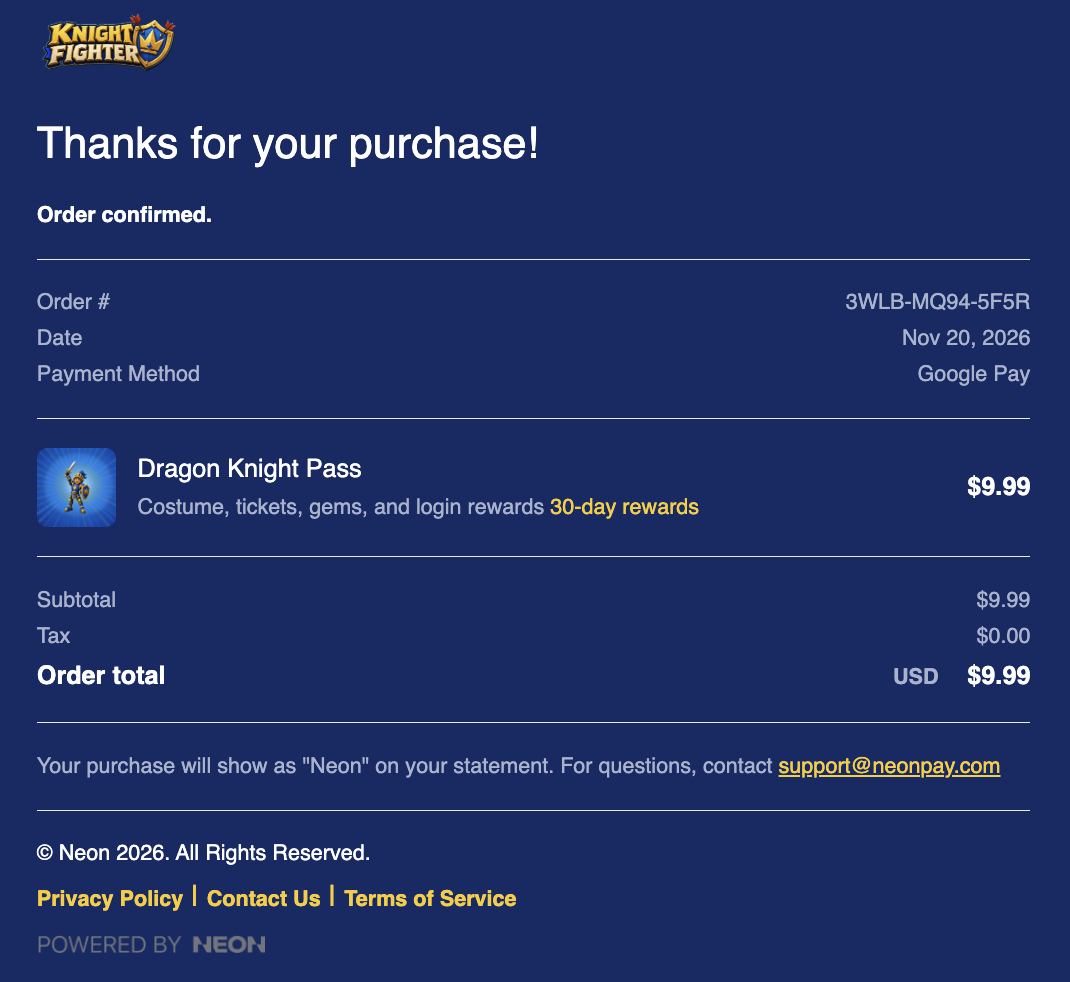
- Header: your game's name and logo.
- Confirmation message: "Thanks for your purchase", followed by "Order confirmed" or your custom note.
- Purchase delay notice: shown only if you have enabled it. It tells the player that the items can take some time to arrive in the game.
- Order details: order number, purchase date and payment method.
- Items: each item with its image, name, quantity and price.
- Totals: subtotal, discount (if the player used a promo code), tax, and order total with currency.
- Wallet details: shown only if the purchase used a wallet. They show how the player paid, the points used and earned, and the balance before and after the purchase.
- Support: a note about how the charge shows on the card statement, and the Neon support address ([email protected]).
- Footer.
Footer links
The receipt footer has links to your Privacy Policy, Contact Us page and Terms of Service. To use your own pages, send the URLs to your Neon representative. If you do not give a URL, links goes to the Neon pages.
Custom note
You can add your own text to the receipt. The note shows under "Thanks for your purchase", in place of "Order confirmed".
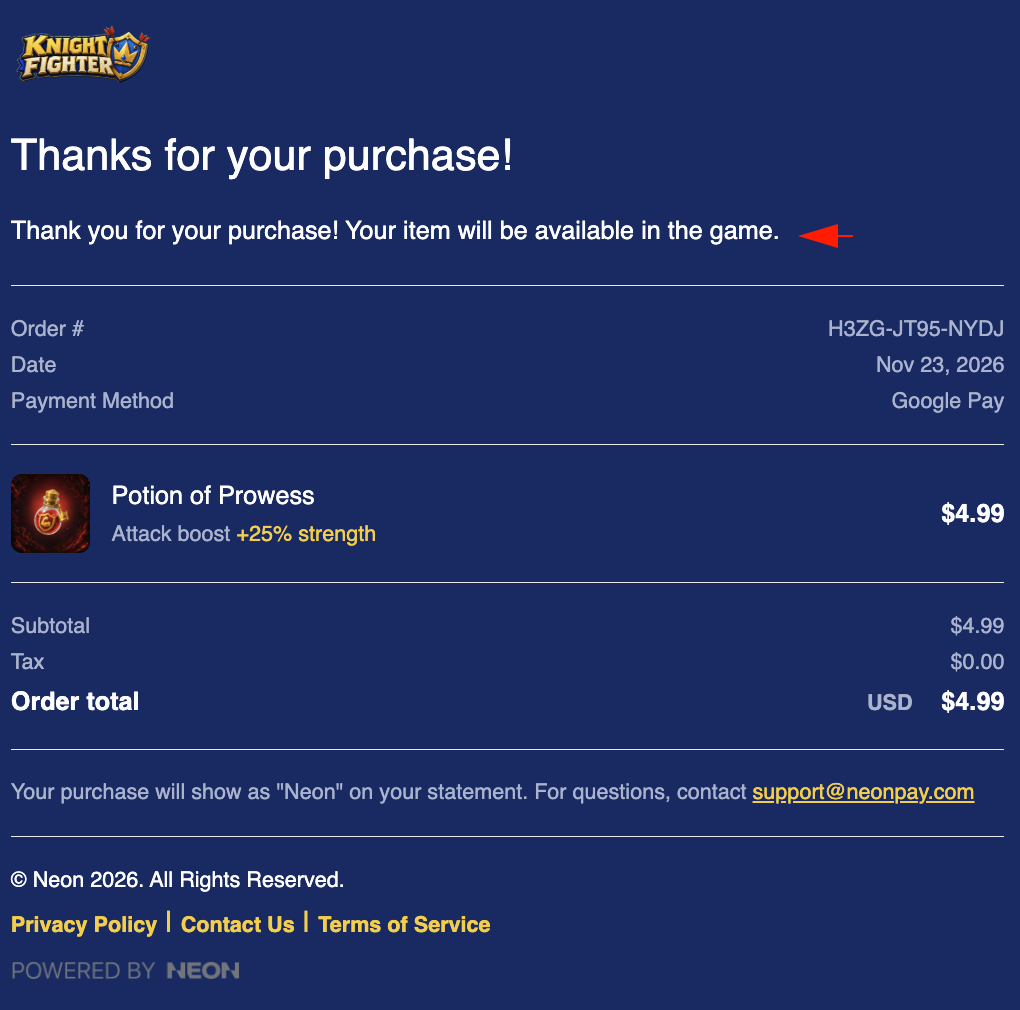
Some uses for a note:
- Special instructions for the purchased offer, for example how to claim or activate it.
- A redeem code and the steps to use it.
- A reminder to restart the game to see the new items.
- A link to download your app.
You can set a note in two ways.
Default note for all purchases
Contact your Neon representative to set a default note. Neon shows this note on every receipt from your environment.
You can give a note for each language. Neon chooses the note that matches the player's language. If there is no note for that language, Neon shows the English note. If there is no English note either, the receipt shows "Order confirmed".
Note in the checkout creation request
To set a note for one purchase, send receipt.note when you create the checkout.
{
  "items": [ ... ],
  "receipt": {
    "note": "Your redeem code: ABCD-1234\nOpen the app, tap the key icon, and enter the code.\nGet the app: https://example.com/app"
  }
}
If a checkout has its own note, the receipt shows that note in place of the default note. The receipt does not show both notes.
Note rules
- Plain text only, up to 500 characters.
- Each line shows as its own paragraph.
- Links that start with http:// or https:// are clickable.
- HTML shows as text. It does not format the note.
- Neon does not translate a note that you send in the checkout. Write it in the player's language.
- The note shows only in the receipt email. It does not show on the checkout page, on the success page, or in API responses.
- The receipt shows the full URL. You cannot put a link behind other text.
Updated 1 minute ago